
Wireless Keyboard and Mouse Combo for Small Desk Setups: What Actually Works
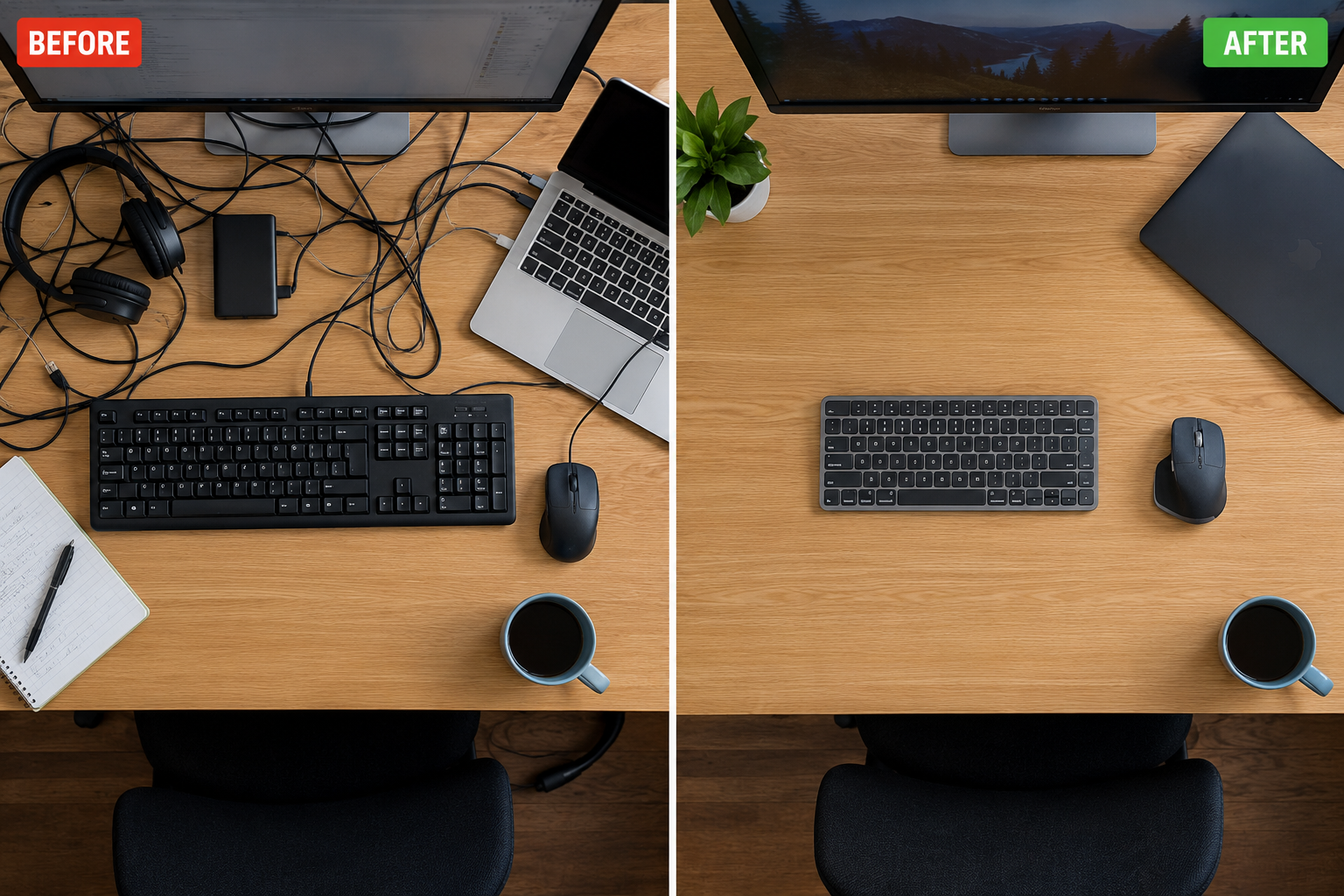
Small desks have a way of making everything feel like a compromise. The monitor takes its space, the laptop sits somewhere in between, there is a coffee mug competing for the remaining corner, and somewhere in the middle of all this a full-size keyboard is quietly making the whole situation worse. A tenkeyless or compact wireless keyboard and mouse combo does not magically create more desk space, but it does give back the centimeters that were being lost to a number pad nobody was really using and a cable routed awkwardly around everything else.
The problem with most buying guides on this topic is that they treat “small desk” as an aesthetic preference rather than an actual constraint. This guide treats it as the main factor and works backward from there.
Why Compact Matters More Than “Wireless” on a Small Desk
Most people shopping for a wireless combo are thinking about cable clutter, which is a real benefit. But on a small desk, the physical size of the keyboard matters even more than whether it has a cable. A full-size wireless keyboard with a number pad takes up essentially the same desk real estate as a wired one. You have removed the cable but kept the bulk, and on a 40 to 60 centimeter wide desk that bulk is what actually causes the problems.
The useful distinction is between keyboard layouts. A tenkeyless keyboard drops the number pad and brings the mouse significantly closer to center, which is better for shoulder ergonomics and leaves noticeably more room for the mouse to move freely. A 75 percent layout compresses the function row tighter and removes a few navigation keys. A 65 percent goes further, dropping the function row entirely. And a 60 percent keyboard is the smallest practical option, keeping only the core alphanumeric keys and using function layer shortcuts for everything else.
For most people working on a small desk, tenkeyless or 75 percent is the sweet spot. You lose the number pad and gain meaningful room without sacrificing the keys that matter daily. Going to 65 or 60 percent involves a learning curve with function layers that only makes sense if portability is also a priority.
The Connection Question: 2.4GHz Dongle vs Bluetooth
Both work well for everyday office and productivity use. The difference matters in specific situations and is worth understanding before picking.
A 2.4GHz wireless connection uses a small USB dongle plugged into your computer and creates a dedicated, stable link between the peripherals and your machine. Latency is essentially imperceptible for typing and normal desktop work. It does use one USB port permanently, which can be a real concern if your laptop only has two or three ports to begin with.
Bluetooth connects without occupying a USB port and can pair with multiple devices at once, letting you switch the same keyboard between a laptop, tablet, or secondary machine with one button press. The tradeoff is that Bluetooth is occasionally less stable, can take a moment to reconnect after waking from sleep, and on crowded wireless environments like busy apartment buildings or open offices it can drop signal more than a dedicated dongle does.
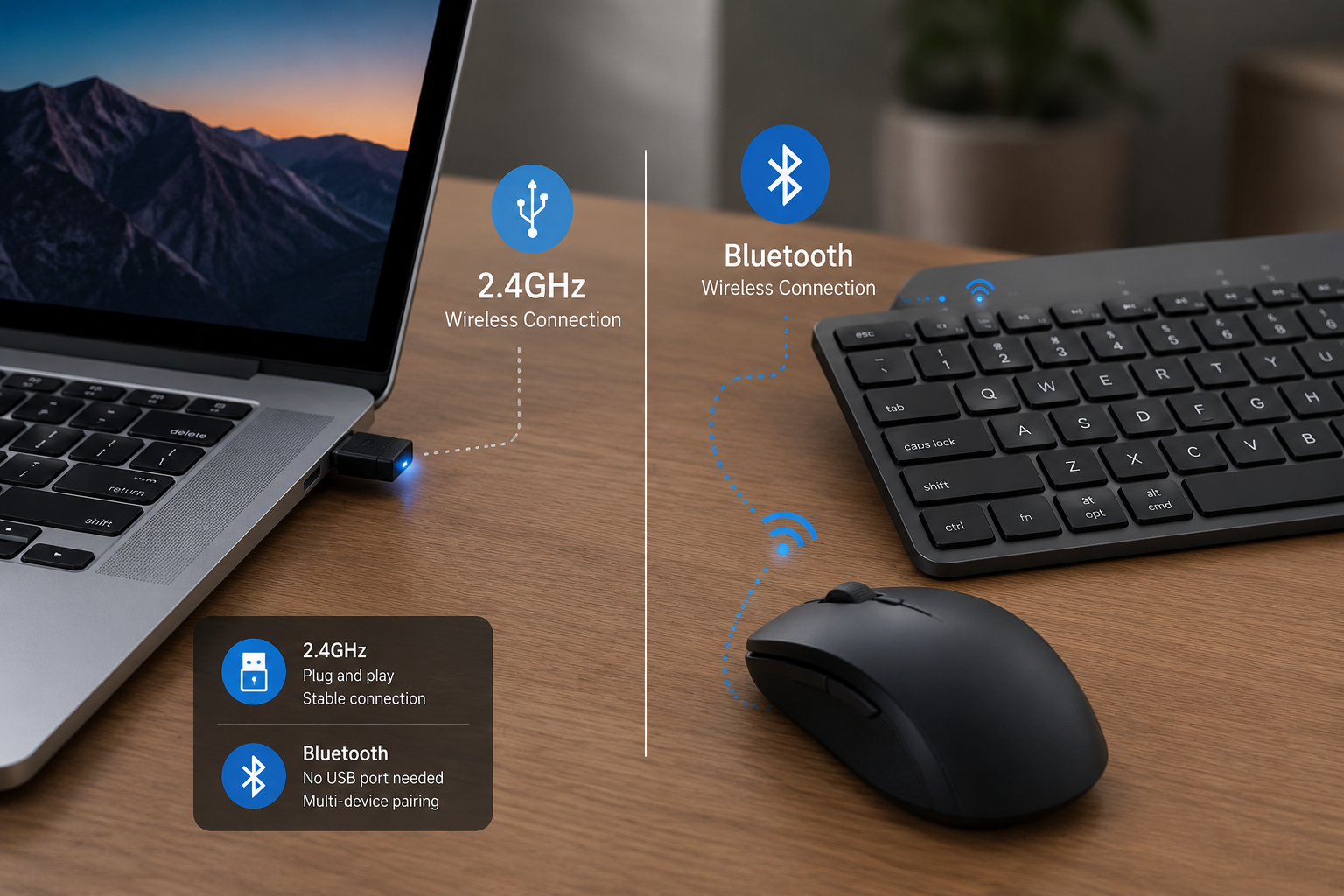
For a single desk with a single computer, a 2.4GHz dongle combo is the more reliable choice. For someone who regularly switches between a personal laptop and a work machine or uses a tablet alongside a computer, a Bluetooth capable combo is worth the minor reliability tradeoff.
Best Picks for Small Desk Setups in 2026
Best Overall Compact Combo: Logitech MK850 Performance
This remains the most consistently recommended wireless combo for people who want quality without building a separate keyboard and mouse setup from scratch. The keyboard has a comfortable key feel without excessively long key travel, and the mouse is closely related to the MX Master line, which is one of the most well-regarded productivity mice available. Multi-device switching lets you move between three paired devices, which makes it genuinely useful if you work across more than one machine. At around $75, it sits at a price where the quality feels proportionate rather than inflated.
For small desks specifically, the keyboard is a full-size layout which is the one caveat here. If your desk is genuinely tight, step down to the next option.

Logitech MK850 Performance Wireless Keyboard and Mouse
Best for: Anyone who wants one quality combo that covers all bases and has moderate desk space. Honest drawback: Full-size layout means the number pad is still there. Not the most compact option despite being excellent overall.
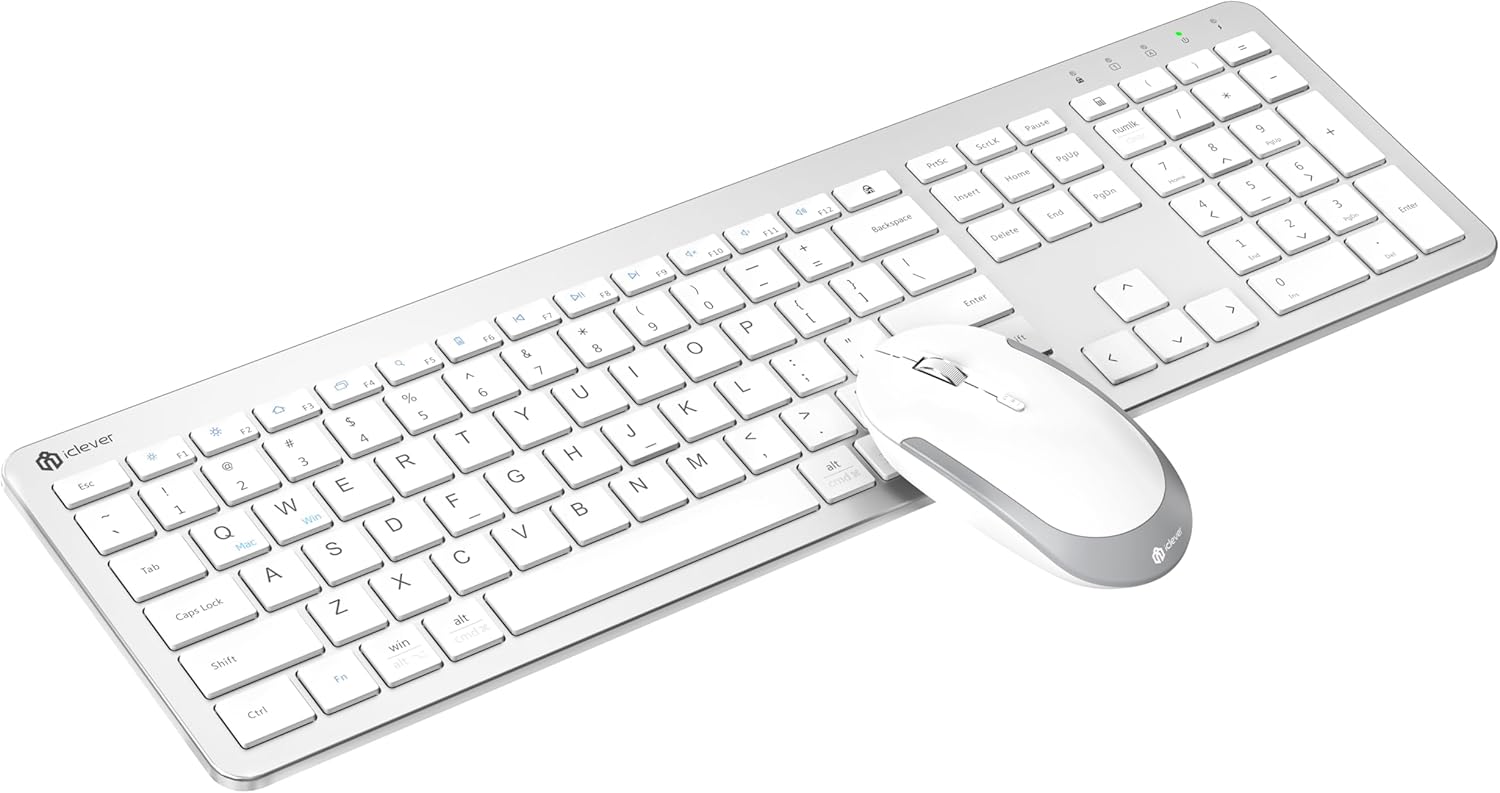
Best Tenkeyless Compact Option: iClever GK08
This is the combo that comes up specifically in small desk contexts and for good reason. The tenkeyless keyboard removes the number pad and brings the mouse back toward center, which is the single biggest ergonomic change a small desk can benefit from. The low-profile keys have a feel closer to a laptop keyboard than a traditional desktop board, which either appeals to you or does not depending on your typing preference. At around $30, it is one of the most affordable compact options with a matched mouse included.
Best for: Students, people with genuinely small desks, or anyone who rarely uses a number pad and wants to reclaim space. Honest drawback: The included mouse is thin and compact, which works for smaller hands but can feel cramped during longer sessions.
iClever Wireless Keyboard and Mouse
Best for Multi-Device Small Desks: Logitech MK825 Performance
This combo handles multi-device switching smoothly and includes a soft wrist rest built into the keyboard, which matters more on small desks where there is no room for a separate wrist rest pad. The curved keyframe is designed for all-day typing comfort. The included mouse has hyper-fast scrolling that is genuinely useful for long documents and spreadsheets. It sits around $60 to $80 depending on availability.
Best for: Remote workers who switch regularly between devices or who type for long stretches and want the wrist rest built in rather than added separately. Honest drawback: This is another full-size layout, so the compact benefit comes from its features rather than its footprint.
Best Budget Pick Under $30: HP 330 Wireless Combo
For anyone who needs a reliable, plug-and-play setup without spending much, the HP 330 delivers quiet keys, a lightweight mouse, and a slim keyboard profile that takes up less room than chunkier budget alternatives. A single USB dongle connects both devices. Battery life runs up to 16 months on the keyboard, which is one less thing to think about. It is not a premium experience, but for basic daily work it holds up without surprises.
Best for: First-time wireless buyers, secondary desk setups, or anyone who needs something functional at minimal cost. Honest drawback: No fast charging standard or advanced features. This is a simple, honest workhorse rather than a performance peripheral.

HP 330 Wireless Keyboard and Mouse
Best Ergonomic Option for Long Sessions: Logitech Wave Keys MK670
If wrist comfort across long workdays matters more than saving a few centimeters of desk space, this combo addresses that directly. The wave layout curves the keyboard slightly to align naturally with how wrists rest, reducing the rotation strain that builds up over hours of flat keyboard use. Quiet keys make it reasonable in shared spaces. The wireless mouse is compact and responsive. Battery life on the keyboard runs to 24 months, which makes this one of the most maintenance-free options available.
Best for: People who type heavily for most of the workday and find flat keyboards cause wrist or forearm fatigue over time. Honest drawback: The wave layout has a slight learning curve if you are coming from a flat keyboard, and the physical footprint is not meaningfully smaller than a standard full-size board.
What to Ignore When Shopping for This Category
Manufacturer battery life numbers are optimistic. A keyboard rated for 24 months of battery life assumes light intermittent use, not eight hours of daily typing. Real-world life is still usually well over a year, but halving the advertised number gives a more accurate expectation.
RGB lighting in a productivity combo adds cost and drains battery faster without offering anything useful for desk work. Unless you specifically want it, ignoring combos that lead with RGB as a feature saves money and battery life at once.
“Gaming” wireless combos in the same price range sometimes have better build quality but are designed around gaming posture and finger travel, not hours of document work. The mechanical switch feel appeals to some typists, but the sizing and layout choices are not always aligned with what works best on a small productivity desk.
The Mouse Side of the Combo: What Matters Specifically for Small Desks
On a small desk the mouse has less room to move, which affects how you use it more than most listings acknowledge. A smaller mouse with adjustable DPI lets you move the cursor further with less physical movement, which is useful when mouse travel space is limited. Most combo mice in the $30 to $75 range include at least two DPI settings switchable with a button, which is enough.
Ambidextrous mice fit both hands but tend to be less ergonomically shaped than right-hand-specific designs. If you use a mouse for extended periods, a right-handed contoured shape reduces strain over time even if the ambidextrous option looks tidier.
Mouse pad size is worth reconsidering on a small desk. A medium pad around 25 by 21 centimeters gives the mouse a consistent surface without competing with the keyboard for space. Larger gaming pads that extend under the keyboard are unnecessary here and just add to the visual clutter a wireless setup was meant to solve.

Keeping Your Small Desk Setup Organized Beyond the Combo
The combo itself removes cable clutter from the keyboard and mouse, but a small desk accumulates other charging cables quickly. If you also charge a phone at your desk, keeping a magnetic charger stand in a fixed spot rather than leaving a loose cable on the desk removes one more thing competing for surface space. And if a laptop and external monitor are part of the setup, a properly sized portable monitor mounted or propped at the right angle keeps the screen from pushing the keyboard out of a comfortable typing position.
Frequently Asked Questions
Is a tenkeyless keyboard actually better for small desks?
For most people yes. Removing the number pad brings the mouse closer to where your arm naturally rests, which reduces shoulder extension and gives the mouse more room to move. The only people who should stick with a full-size layout are those who regularly do data entry work where the number pad provides a genuine speed benefit.
Does wireless have any noticeable lag for typing and daily work?
Not in any practical sense. Both 2.4GHz and Bluetooth wireless combos respond quickly enough that the delay is below human perception for typing, browsing, and document work. The lag concern applies only to competitive gaming, not productivity use.
Can I use a wireless combo with a standing desk or laptop riser setup?
Yes, and this is actually where a wireless combo becomes more useful than a wired one. Being able to reposition the keyboard and mouse freely without managing cable length makes adjustable desk setups significantly more flexible.
What if I also use a tablet or iPad alongside my laptop?
Look for a combo with Bluetooth multi-device support rather than a 2.4GHz dongle-only model. Multi-device combos let you switch the keyboard between paired devices with a button, which removes the need for a separate keyboard for the tablet.
How long do batteries actually last on a wireless keyboard and mouse combo?
For keyboards, expect six months to over a year of genuine daily use depending on the model and how heavily it is used. Mice tend to need batteries or recharging more frequently, usually every two to six months. Models with auto-sleep features when not in use extend battery life meaningfully. Rechargeable combos with USB-C charging are increasingly common and remove the AA battery replacement routine entirely.
Is it worth buying a keyboard and mouse separately instead of a combo?
Combos are simpler, usually cheaper for the combined cost, and guaranteed to work together with a single USB receiver. Buying separately makes sense if you have a specific mouse you already use and love, or if you want a mechanical keyboard and a separate high-performance mouse without compromising on either. For a small desk setup where simplicity and space are the priorities, a matched combo avoids the need to research compatibility and reduces the number of USB receivers or Bluetooth connections managing your desk.
The Bottom Line
A wireless keyboard and mouse combo for a small desk is a more useful upgrade than it sounds. The cables were never the real problem. The size and placement of the hardware was. Choosing a tenkeyless or compact layout keyboard puts the mouse back where your arm wants it to be, keeps more desk surface available, and removes the visual noise that makes small workspaces feel cramped.
The iClever GK08 covers the compact budget need cleanly. The Logitech MK850 covers the quality mid-range need, even if it is not the smallest footprint. The MK670 covers the ergonomic angle for heavy typists. Pick based on how your desk is actually sized and how your wrists feel at the end of a long day, and the right choice becomes reasonably clear.